
3D PDF Exporter for AutoCAD plugin enables AutoCAD users to export their 3D models in *.pdf file format.
The plugin is supported on AutoCAD 2012, 2013, 2014, 2015, 2016 (32, and 64bit), and 2017 (64bit) .
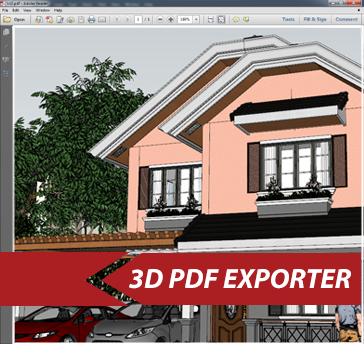

DOWNLOAD 3D PDF EXPORTER PLUPIN ON YOUR DEVICE. FREE TRIAL.
SimLab Plug-ins are the right option for users who are looking for a specific feature to complete their 3D design application.





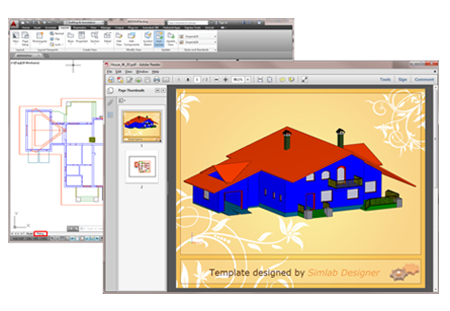
3D PDF exporter for AutoCAD plugin enables users to share their 3D models in 3D PDF format. The newly added Template Designer enables users to create stunning templates easily to be used in 3D PDF export. Sample templates are included, and they can be customized in just few clicks to reflect the spirit of a product. To learn more about Template Designer, please click here.
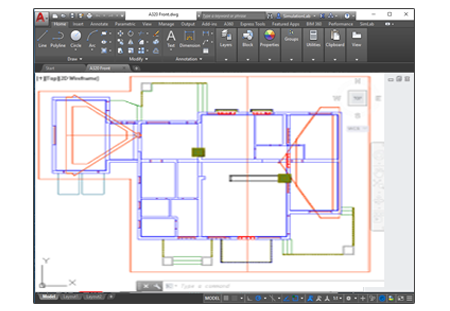
2D plots created inside AutoCAD can also be exported along with 3D model in the customized 3D PDF file.
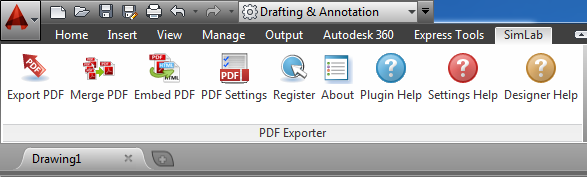
For the first time a user will need to register the plugin's license, Trial or Professional. This can be done by clicking the Register button, or by clicking the Export to PDF button in the plugin's ribbon. For a step by step instructions on how to register a license, please click here.
Before exporting PDF files, a user will need to select a template to use in PDF file export. Click PDF Settings button, to open its dialog, and select the template to use and set the other
PDF Settings.
The user of the plugin can select form the many available templates for the
exported 3D PDF file, or can create / edit templates, using SimLab Soft Designer.
To export models from AutoCAD in *.pdf format click the Export PDF button. The Scenes manager dialog will apper, where in the Cameras tab a user can select the cameras to include in the exported 3D PDF file, and then click Ok. The Export dialog will open, to select the name and location of the new 3D PDF file, and then click Save.
If you face any problem with showing SimLab plugin, please read the following article to learn how to show SimLab Soft menu. click here
Users who already have a valid license for the old version of the plugin, can download from here.