The Billboard lets you create geometry that is camera-aligned. The objects always align to view default or connected camera. The plane geometry linked to the Billboard will rotate around the local Z axis to face the viewer. The Billboard is centered on the object (plane) which is linked to it.
To create a Billboard:
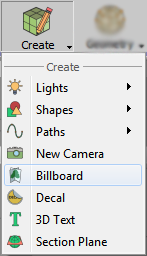
Go To create tool »Click the Billboard button on it.
Enter settings as desired in the corresponding fields of the Create Billboard dialog box.
Click OK
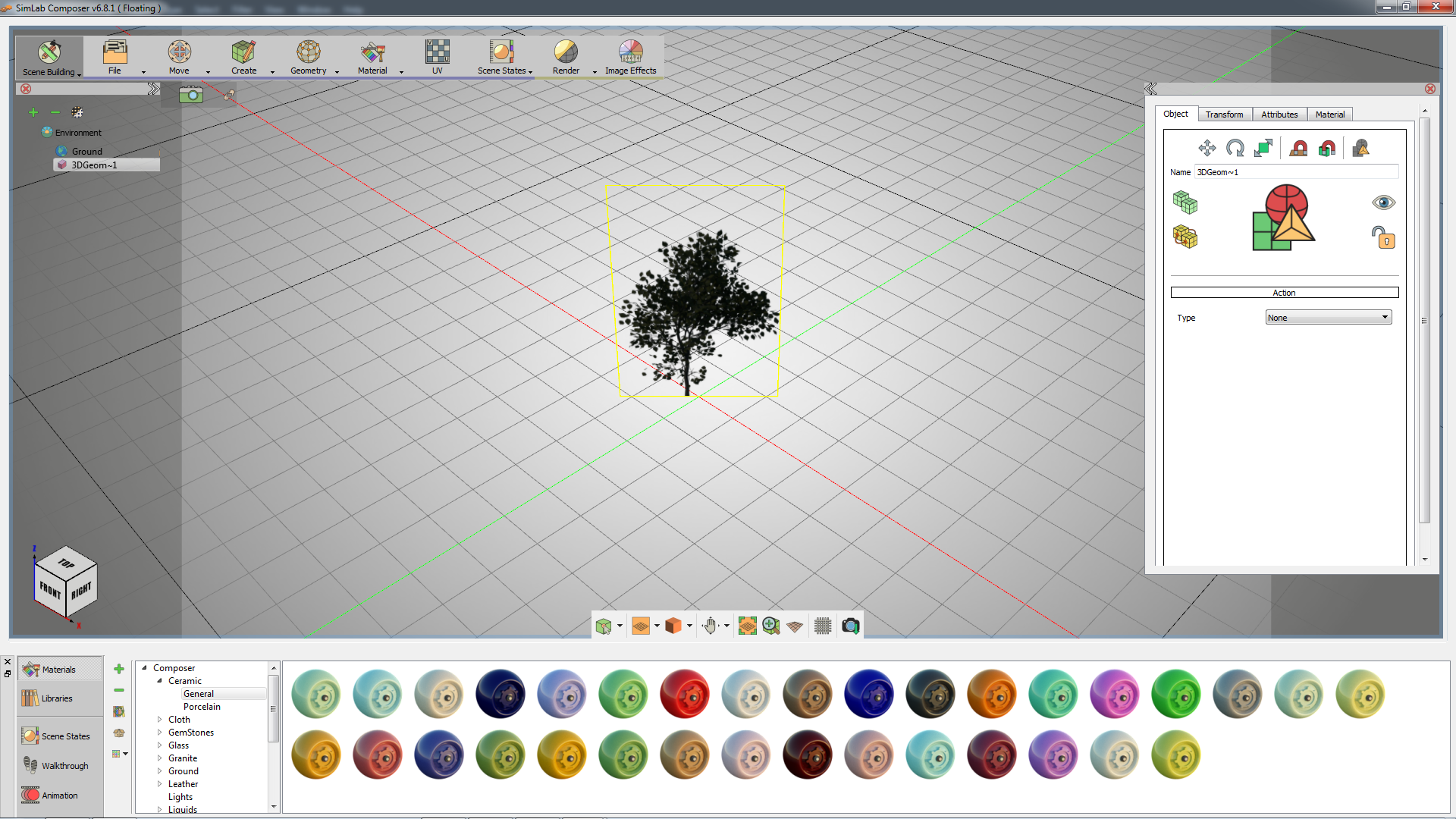
After positioning a tree, for example, it will render as a well-behaved Billboard.
The Create Billboard dialog box (as shown in the following image) requires the following data:
Position: Click anywhere in the 3D Area to pick a position (X Y Z) to place the billboard at.
Image: Browse and select an image (choose PNG image format to preserve transparency). The default image will be a tree (as shown in Figure x.x) if the user didn't select an image.
Height: Enter the suitable height that you wish in meters. Because it depends and takes the aspect ratio of the selected image, the width of the Billboard will be approximated automatically.
OK: Confirm and accept billboard's settings.
Cancel: To exit Billboard creation mode.
New billboard object was introduced. The billboard object always faces the camera, to allow architects to add PNG trees and humans to the scene, as shown in the following render.
Billboards are always kept aligned with the camera. not selecting an image results to tree image.
After creating a Billboard, its selected image will be considered if it was a normal material. Therefore, further modification and material-related operations are applicable to it.