Resource
 Delete Resource
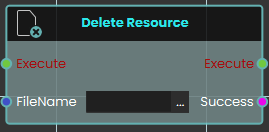
The Delete Resource node enables the system to remove specific resources currently stored in the SimLab File Vault. This node simply requires the exact "FileName" of the target file as an input to execute the deletion. It outputs a "Success" boolean to confirm whether the specified file was successfully removed from the vault.
 Download Resource

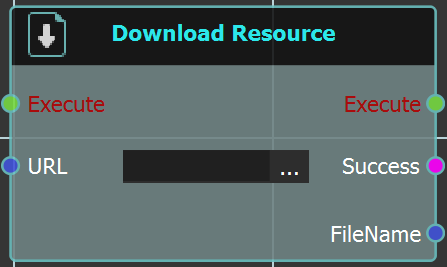
The Download Resource node enables the system to download a specific file directly from the SimLab File Vault while a user is actively engaged inside a VR experience. This node requires the exact URL of the vault file to be linked into the node's input. Upon execution, it retrieves the file and provides a "Success" status alongside the downloaded "FileName" to be used in subsequent logic.
For more information, refer to SimLab Vault tutorial below:
 Get Path From Resource
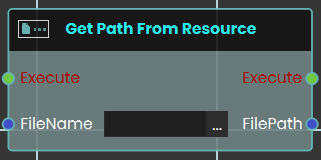
The Get Path From Resource node enables the system to retrieve the exact URL or local file path of a specific resource or file. This node requires the exact "FileName" of the target file as an input.
 Save VRPackage

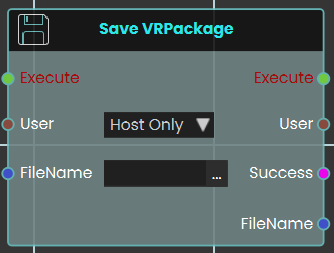
The Save VRPackage node enables the system to save the current, active VR experience as a standalone .vrpackage file, directly from within the VR session itself. It requires a "FileName" to name the new package and includes a "User" dropdown (e.g., "Host Only") to specify which user is authorizing the save. It outputs a "Success" boolean and the final "FileName" to confirm the action.
 Upload Media From User
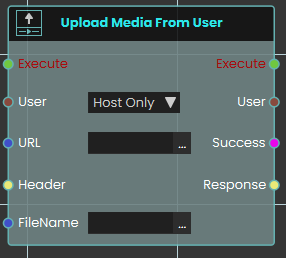
The Upload Media From User node functions similarly to the standard Upload Resource node by sending files to the SimLab File Vault via a designated URL. This node is specifically designed for multiplayer VR Collaboration environments.
It allows an administrator or host to target a specific user (via the "User" dropdown) and upload a file from that user's local device directly to the central File Vault. This is crucial for sharing media when a file exists only on an individual participant's machine and not on the host's device. Like the standard upload node, it outputs a "Success" boolean.
 Upload Resource
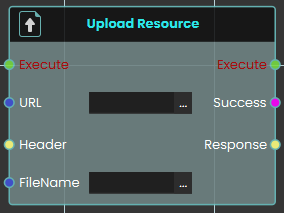
The Upload Resource node enables the system to send and save resources to the SimLab File Vault during a live VR experience. This node requires the destination URL for the file vault, as well as the assigned "FileName" for the file being uploaded and outputs a "Success" boolean.
For more information, refer to SimLab Vault tutorial below:
Cloud Upload
Saves a file from the running experience into a folder in your SimLab Cloud Files.
What it does
Cloud Upload takes a file that is part of the experience (for example, a screenshot or report the experience just saved) and stores it in the SimLab Cloud Files folder you picked. Unlike Upload Resource, which sends a file to a web address you supply, you don’t need a URL or any headers here — you choose the destination folder from your own SimLab Cloud Files with the folder picker.
The node waits until the upload is complete, then tells you whether it worked, the name the file was saved under, and a link to the file when one exists. If a file with the same name is already in the folder, the new one is saved under a slightly different name (for example with _1 or _2 added), so nothing already in the folder is replaced. The file in the experience is not changed or removed.
The person running the experience must be signed in to SimLab — with any account; in a shared session, the host. The folder stays yours: uploads count against your Cloud Files storage, and your SimLab license must include Cloud Files. The person running the experience needs no license of their own.
Inputs
| Port | Type | What to connect |
|---|---|---|
| Execute | Trigger | Wire this from the previous node’s Execute output. |
| Target Folder | Text | The SimLab Cloud Files folder to upload into. Click the field and choose the folder with the folder picker rather than typing it. If no folder is set, the upload fails. |
| FileName | Text | The name of the file in the experience to upload, for example a file name returned by a node that saved it. Use the file name only, without any folder in front of it. Although the field can be left blank in the editor, the upload fails if it is empty or if the experience has no file with that name. |
Outputs
| Port | Type | What you get |
|---|---|---|
| Execute | Trigger | Fires once the upload has finished, whether it worked or not. Check Success to find out. |
| Success | True / false | true when the file was stored in the folder. false when the folder or file name is missing, the experience has no file with that name, nobody is signed in, the Cloud Files storage is full, SimLab Cloud could not be reached, or the upload was refused or interrupted. |
| URL | Text | A link to the uploaded file, when one exists. Empty when the upload failed. |
| SavedName | Text | The exact name the file was saved under in the folder. It matches FileName unless a file with that name was already there, in which case a number is added. Use this name, not the one you sent, whenever you refer to the file later. Empty when the upload failed. |
Example
| Target Folder input | Training Results, chosen with the folder picker |
| FileName input | forklift_inspection.png |
| Success output | true |
| SavedName output | forklift_inspection.png (or forklift_inspection_1.png if the folder already had a file with that name) |
Tips
Cloud Download
Brings a file from your SimLab Cloud Files into the running experience.
What it does
Cloud Download fetches a file from your SimLab Cloud Files and adds it to the experience’s files, so other nodes can use it. Unlike Download Resource, which needs the file’s web address, you don’t need a URL here — you pick the file from your own SimLab Cloud Files with the file picker. The file stays in your Cloud Files; nothing there is changed. The person running the experience must be signed in to SimLab — with any account; in a shared session, the host.
Inputs
| Port | Type | What to connect |
|---|---|---|
| Execute | Trigger | Wire this from the previous node’s Execute output. |
| Target File | Text | The SimLab Cloud Files file to download. Click the field and choose the file with the file picker, or paste a key reference for a single file, copied from the Hub (Resources page → the key button on the file, “Create API key here”). If nothing is set, the download fails. |
Outputs
| Port | Type | What you get |
|---|---|---|
| Execute | Trigger | Fires once the download is done on every participant’s machine, whether it worked or not. Check Success to find out. |
| Success | True / false | true when the file is ready in the experience. false when no file is set, nobody is signed in, SimLab Cloud could not find or give access to the file, or the download failed on any machine. |
| FileName | Text | Where the downloaded file was saved in the experience’s files. Pass it to the nodes that need the file. Empty when the download failed. |
Example
| Target File input | Training Results/forklift_inspection.png, chosen with the file picker |
| Success output | true |
| FileName output | The saved location of forklift_inspection.png in the experience’s files |
Tips
- If the experience already has a file with the same name, that file is used and nothing new is downloaded. When you replace a file in your Cloud Files and need the new version, give it a new name.
- To save a file from the experience into your Cloud Files, use Cloud Upload.