SimLab VR Studio 라이센싱


다운로드 후SimLab VR 스튜디오, 필요한 버전의 SimLab VR Studio를 기기에서 활성화하는 단계를 따르세요.

VR Studio Activation: 당신은 2023년 10월까지의 데이터로 훈련 받았습니다.

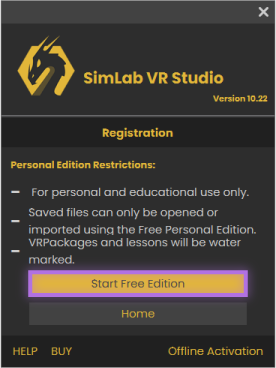
개인 및 교육용으로만 사용 가능한 무료 개인 에디션을 사용할 수 있습니다.
참고: 이 버전에서 생성된 파일은 무료 개인 버전을 사용하여서만 열거나 가져올 수 있으며 워터마크가 표시됩니다.


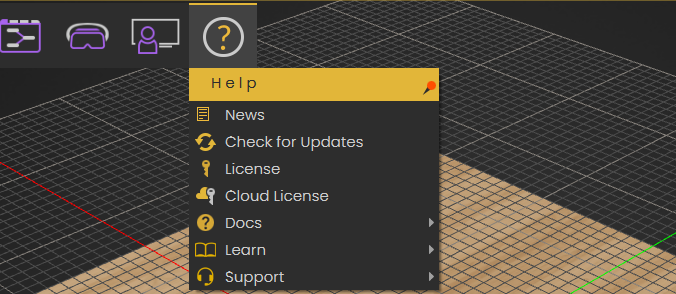
  • SimLab VR Studio를 시작하고, 라이선스 대화상자를 실행하려면, 도움말 아이콘을 클릭한 후, 라이선스 탭을 선택하세요.Start SimLab VR Studio, to launch the License Dialog, Click on the help icon, then the License tab.

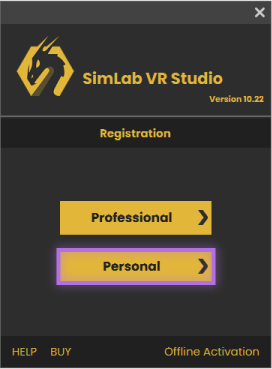
  • 개인 버튼을 클릭하세요.Click on Personal Button.

  • Start Free Edition을 클릭하세요.Click on Start Free Edition.


전문 라이선스를 얻으려면 사용자는 다음을 수행해야 합니다:


  • SimLab VR Studio를 시작하여 라이선스 대화 상자를 실행하려면 라이선스 탭에서 도움말 아이콘을 클릭하십시오.Start SimLab VR Studio, to launch the License Dialog, Click on the help icon in the License tab.


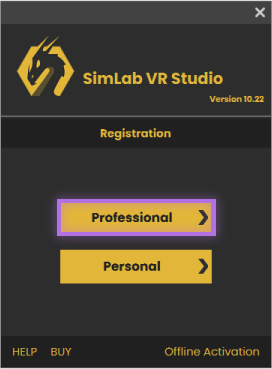
  • Professional 버튼을 클릭하세요.Click on Professional Button.


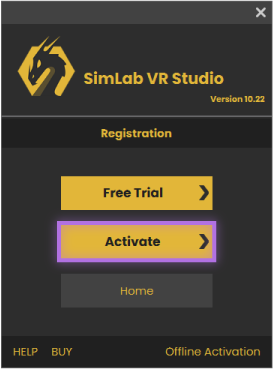
  • Activate 버튼을 클릭하세요.Click on Activate Button.


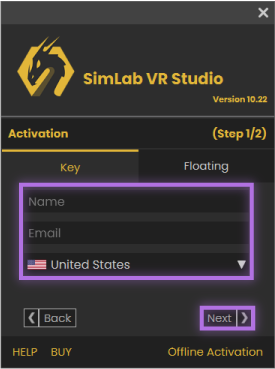
  • 키 섹션에 머무르며 이름, 이메일 등 필드를 채우세요. 그런 다음 클릭하십시오.the Nextbutton.Stay at the key section and fill the fields of Name, Email ..etc. Then click the Next button.


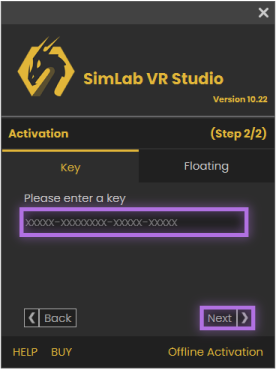
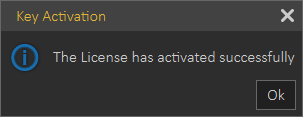
  • 수신된 Software 키를 입력한 다음 클릭하십시오.Next버튼. 유효한 네트워크 연결이 있으면 Professional 라이선스가 자동으로 활성화됩니다.Enter the Software key that has been received, then click the Next button.
    If you have a valid net connection the Professional license will be activated automatically.


이 과정 중에 문제가 발생한 경우, 다음 수동 프로세스를 사용할 수 있습니다


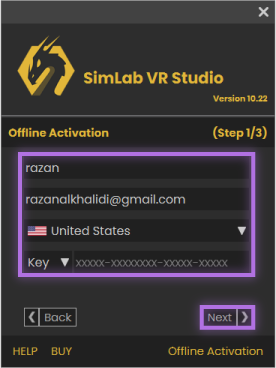
  • 대화 상자의 아래쪽에 있는 Offline Activation 링크를 클릭한 후, 이름, 이메일 등을 포함한 필드를 작성하고 Key를 선택한 다음 Next를 클릭하십시오.Click on the Offline Activation link at the bottom of the dialog, then fill the field such as Name, email...etc, and select Key then click Next.

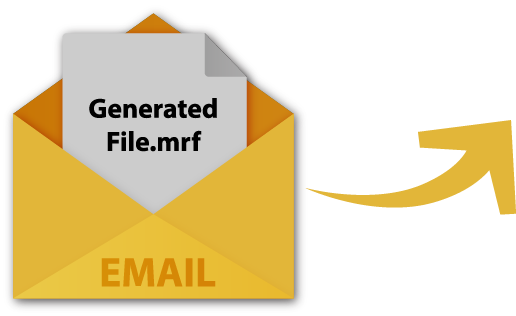
  • 파일을 기기에 저장하면 .mrf로 저장되며, 그런 다음 파일을 보내세요.support@simlab-soft.com Save the file into your machine it will be saved as a .mrf, then send the file send file
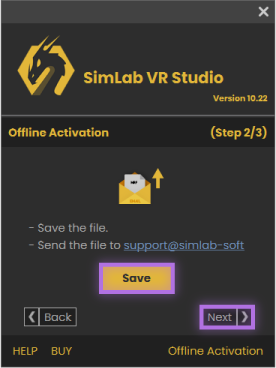
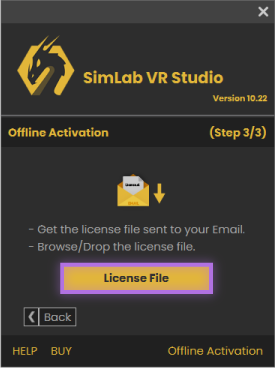
  • 라이센스 파일을 받게 됩니다, 다운로드한 후, 클릭하세요.License File교수 자격증을 준비하려면 버튼을 누르세요.A license file will be received, download it, then click on the License File button to get your professorial license ready.


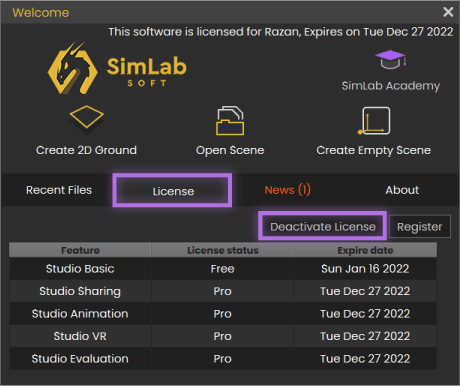
이 단계를 따라 VR Studio License 비활성화


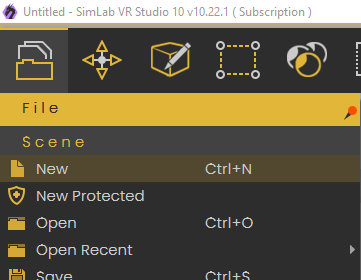
  • 파일 > 새로 만들기를 선택하십시오. 아래 이미지에 표시된 대로.Go to file, new. as shown in the image below.

  • "Deactivate License" 버튼을 클릭하세요.Click on the Deactivate License Button.

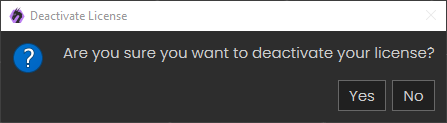
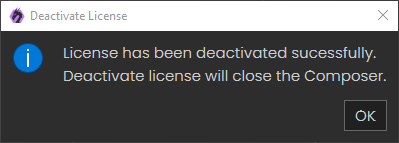
  • 'Yes'를 클릭하세요. 이제 사용자는 다른 기기에서 라이센스를 성공적으로 사용할 수 있습니다.Click 'Yes' now the user can successfully use his license on another machine.

다음 단계에 따라 VR Studio 라이선스 키를 컴퓨터에서 비활성화하세요.


  • 파일 > 새로 만들기 로 이동하세요. 아래 이미지에 표시된 대로.Go to file new. as shown in the image below.

  • "Deactivate License" 버튼을 클릭하세요.Click on Deactivate License Button.

  • 'Yes'를 클릭하세요. 이제 사용자는 다른 기기에서 성공적으로 라이센스를 사용할 수 있습니다.Click 'Yes'. now the user can successfully use his license on another machine.

공유 및 LMS 사용자:

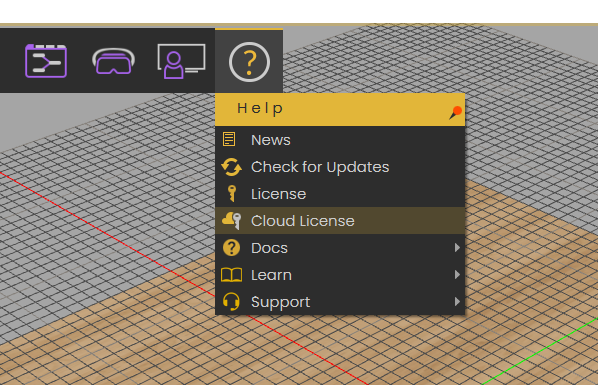
다음 단계를 따라 귀하의 머신에서 VR Studio 클라우드 스토리지 라이선스 키를 활성화하세요.


  • 아래 이미지에 표시된 대로 Help > Cloud License로 이동합니다.Go to Help > Cloud License. as shown in the image below.

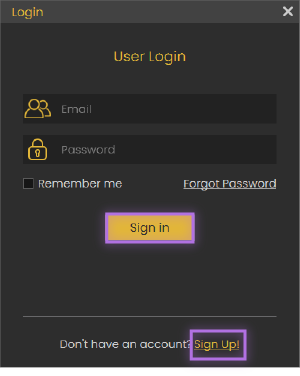
  • 계정을 생성하거나 기존 계정에 로그인하세요.Create an account or sign in for existing one

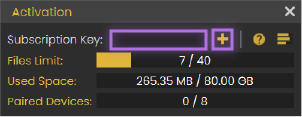
  • 로그인한 후 구독 키를 입력하세요.Once you logged in enter your subscription key.

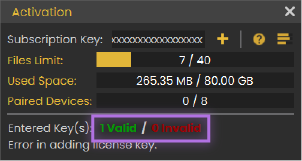
  • 키를 입력하면 아래 이미지와 같은 메시지가 나타나야 하며, 키가 유효하고 활성화되었음을 나타냅니다.Once the key was entered, there should be a message like an image below, indicating that the key is valid and activated.

다음 단계에 따라 기기에서 SimLab Admin 라이센스 키를 활성화하세요.


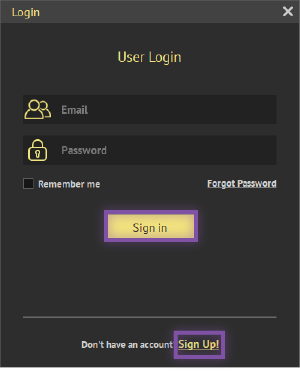
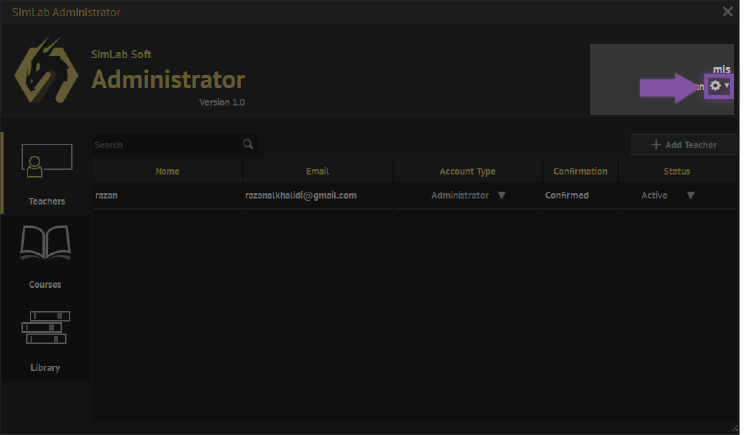
  • "SimLab Admin"을 열고 "Sign in" 또는 "Sign Up"을 선택하십시오.Open SimLab Admin, then Sign in or Sign Up

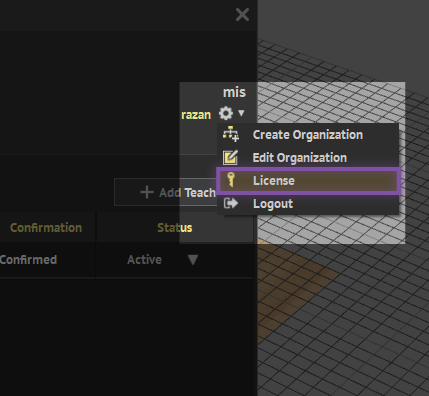
  • 그 후 아래 이미지와 같이 창이 열리면 설정 아이콘을 클릭하십시오.after that a window will be open like image below, click on setting icon.

  • "license"를 클릭하세요.Click on license

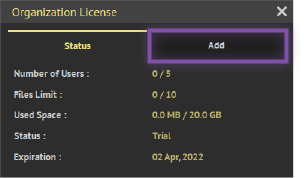
  • "추가"를 클릭하세요.Click on Add

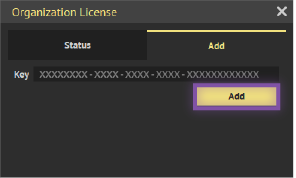
  • 키를 추가하세요. 키가 입력되면 키가 유효하고 활성화되었음을 나타내는 메시지가 나타나야 합니다.Add Your key, once the key was entered, there should be a message, indicating that the key is valid and activated.