Acquiring VR Experiences

To access SimLab VR Store and aquire VR Experience, download and run SimLab VR Viewer.

Create a free SimLab Account if you have not already, and sign in, then click on the “SimLab Store” Tab.
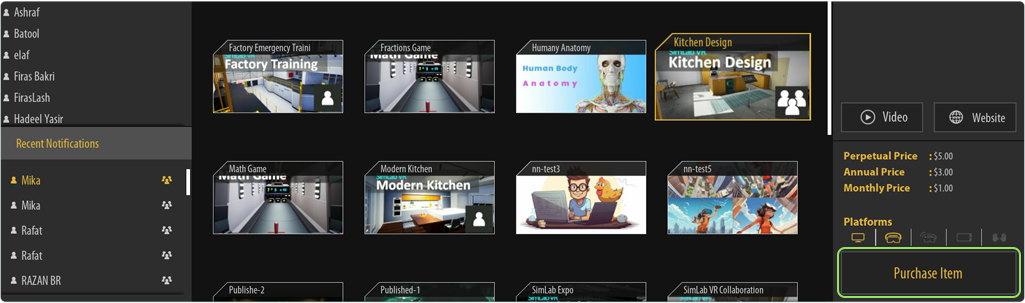
From the Purchase Dialogue select which purchase plan you want to have then click on Confirm Purchase if you have enough credit in your balance.
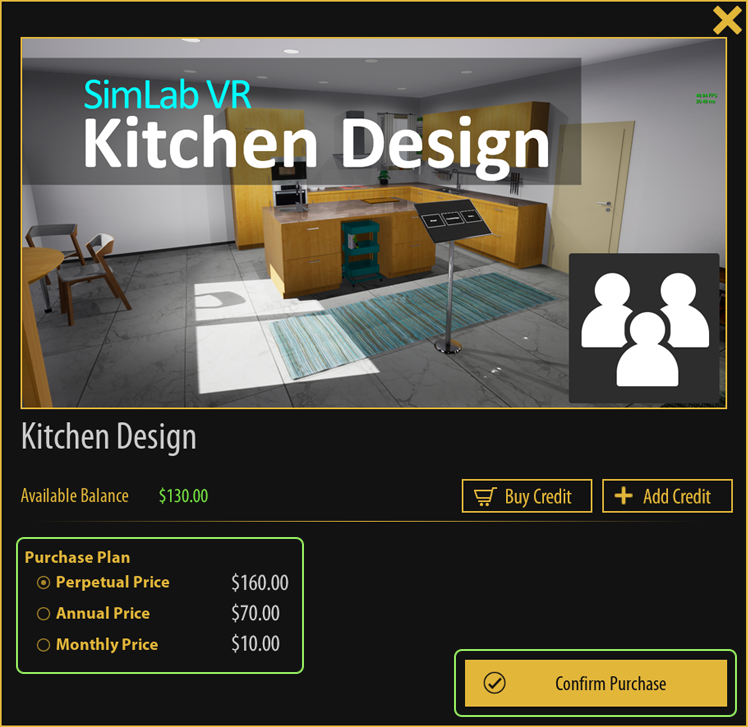
To access purchased items, go to the Obtained Models tab where you can find purchased VR Experiences and those that were shared with you by other users.

Adding SimLab Store Credit
The easiest method to top up your credit is to click on Buy Credit which will direct you to this web page where you can purchase credit safely and recieve a Key.
Once you have the Key, click on Add Credit.
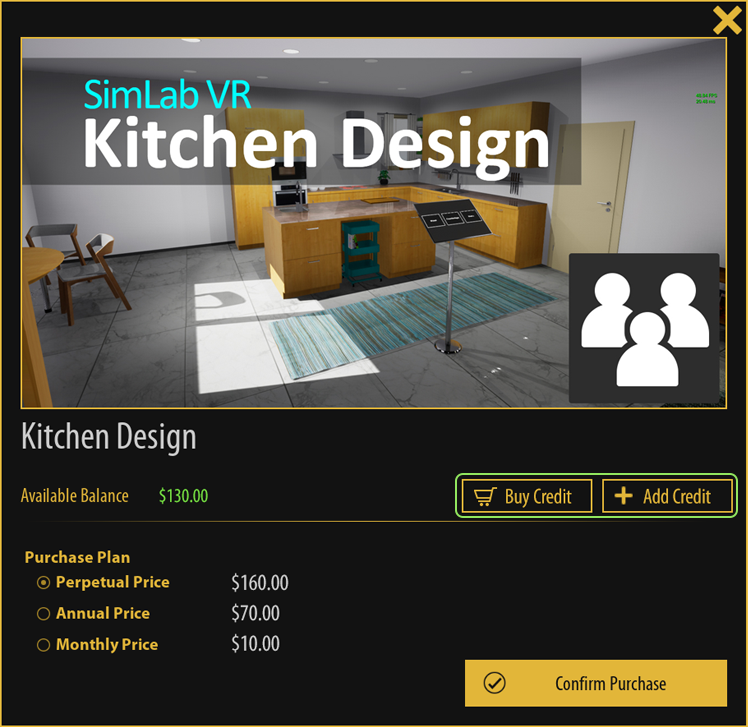 Buy Credit which will direct you to this web page where you can purchase credit safely and recieve a Key."/>
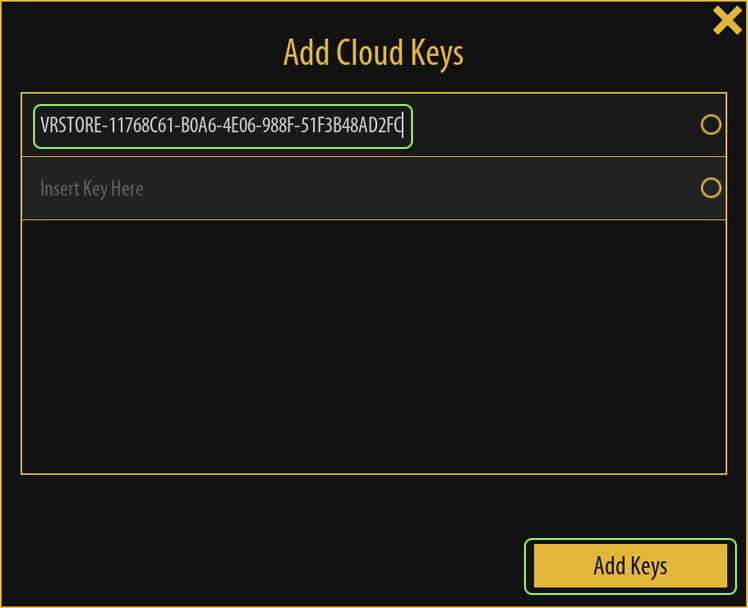
Copy the key that you have recieved and paste it in the Add Cloud
Keys Dialogue, then click on Add Keys to top up your credit Balance instantly.