

The ultimate tool to
view 3D OBJ models on IPad
SimLab 3D Products \SimLab 3D OBJ Viewer
SimLab 3D OBJ Viewer
What is SimLab 3D OBJ Viewer
SimLab 3D OBJ Viewer is an IPad /IPhone application for
viewing 3D OBJ (Wavefront) files (*.obj) Obj is a standard file
format exported from a wide range of 3D/CAD applications.

Screenshots
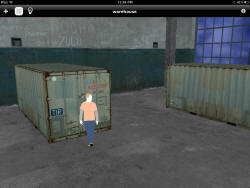
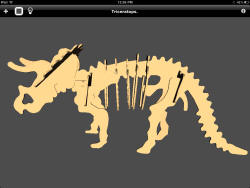
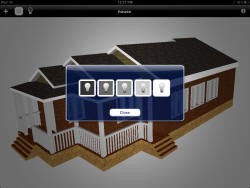
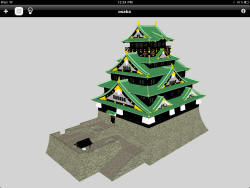
Tutorial
Loading a model
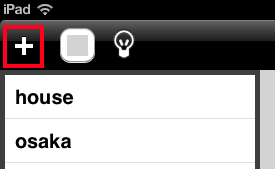
When starting SimLab 3D OBJ Viewer, the user can view available models by clicking on the + menu in the top left part of the application. A list of available OBJ models will appear and the user can select the model to be viewed.
Navigating the model
Rotating: the user can rotate the model by moving a single finger on the IPad surface
Panning: the user can pan the model by moving two fingers in the same direction on the IPad surface
Zooming: zooming can be done by moving tow fingers away from each other
Options
Light power
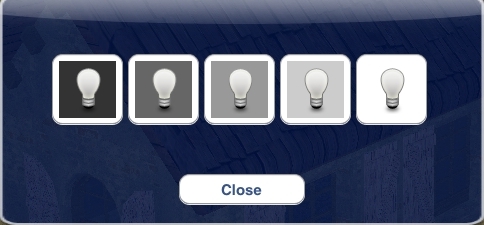
Clicking on the light icon on the top left part of the application will show the light power dialog which allows the user to select the appropriate light power level for the model
Background color
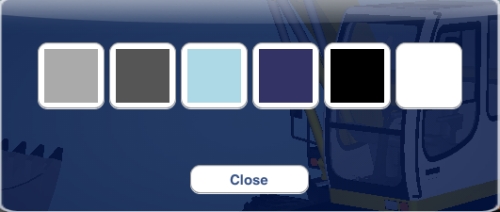
Clicking on the color button in the application will open the background color dialog which allows the user to select the background color
Adding a new model
With the release of SimLab composer 2.4, Obj files can be transferred to OBJ Viewer in different ways.
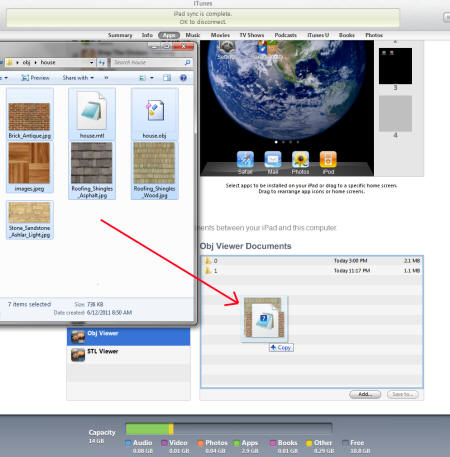
» using iTunes, by dropping the OBJ, MTL and texture files in the OBJ Viewer documents
» Emailing OBJ files, The user can select the e-mail, and click on the attached OBJ file.
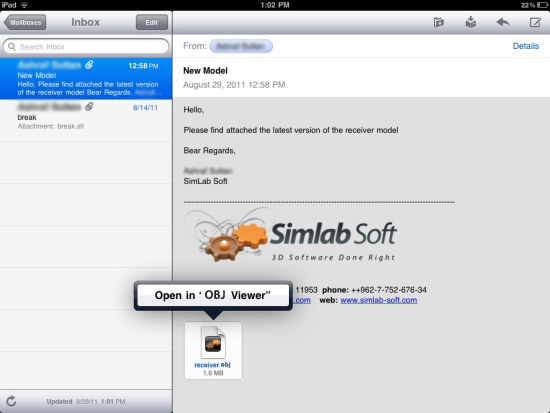
Choose the Open + menu in SimLab OBJ Viewer and the OBJ file will be automatically opened using SimLab OBJ Viewer.
» Using Dropbox, Dropbox can now be used for exchaning OBJ files.
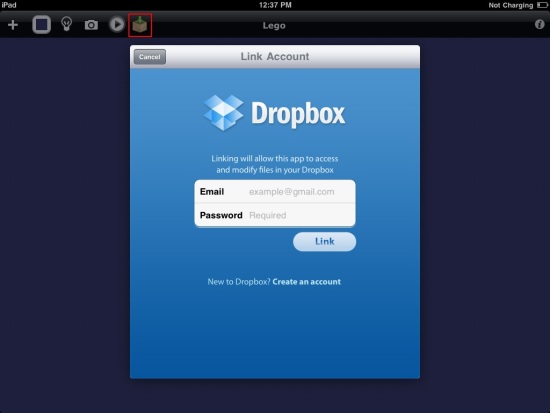
Click the dropbox button in the top toolbar, then login to the dropbox account.
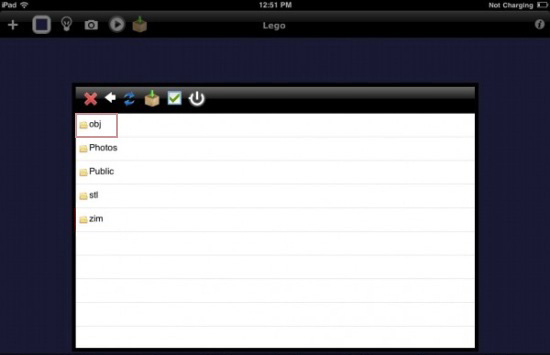
The directories will appear, and clicking a directory will show its contents.
Select the OBJ file to be downloaded.
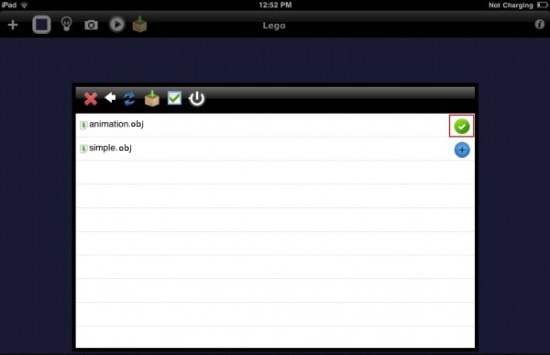
When the download is completed, the imported files will appear in the models list.
Removing an existing model
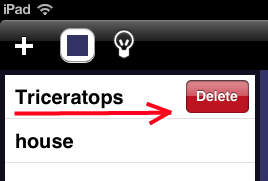
Moving a finger on the a file name in the model list, shows the delete button for the model. Clicking the delete button will delete the selected model and remove it from the list