




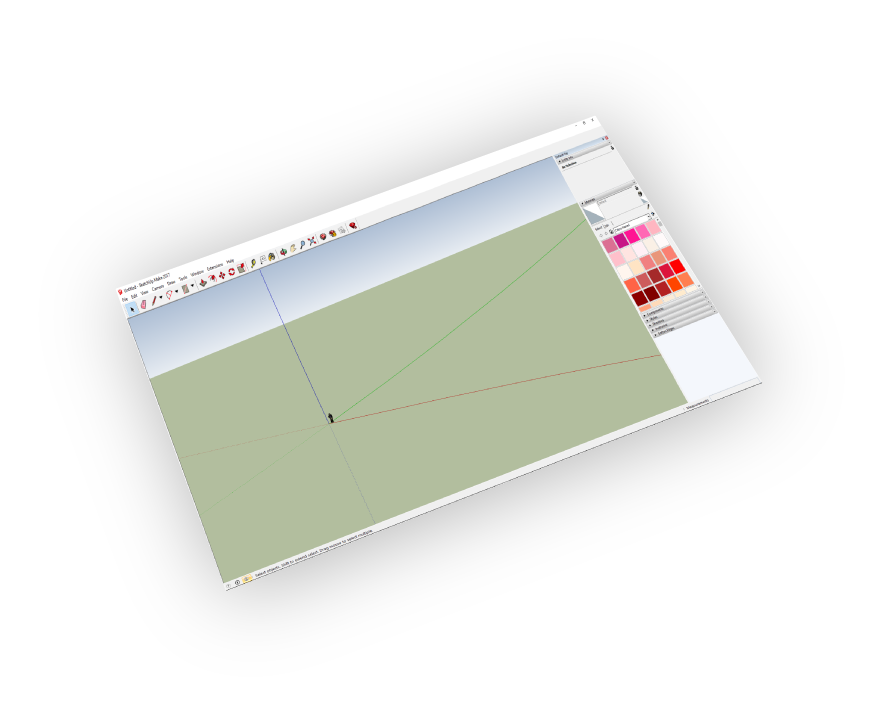

How do I import FBX files into SketchUp?
SimLab FBX Importer for SketchUp is a plugin that imports FBX files into SketchUp 8 through 2027 on Windows and macOS. It transfers geometry, materials and textures plus rigid-body (transform) and skeleton animation, and supports models with flexible animations. Scale, rotation and up vector can be adjusted on import. It appears under the SimLab tab. A new single-user license is $79 and a floating license $299; a free 14-day, 30-use trial needs no credit card.
- Host: SketchUp 8 – 2027
- Imports: geometry, materials, textures, transform and skeleton animation
- OS: Windows and macOS
- Price: Single User $79 new / $39 upgrade; Floating $299 new / $149 upgrade
- Controls: scale, rotate, up vector
- Trial: 14 days or 30 uses, no credit card

Supports
SketchUp 8 - 2027 files and older

Animations
Supports animations and keyframes

FlexBodies
Supports models with flexible animations
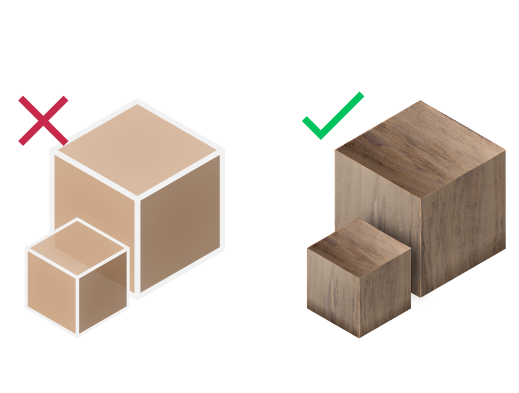
Materials Support
Import your models with their materials


Pricing
SketchUp FBX Importer
SketchUp
FBX Importer

How to get it and use it?
- Download the plugin and install it.
- Run SketchUp.
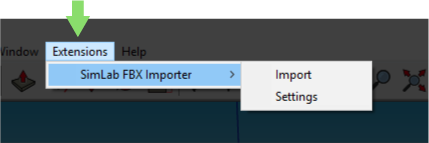
- Go to SimLab Tab and find FBX Importer Tab as shown in the image.
- To obtain a trial license, open settings then follow the steps shown here.

FAQ
- How do I convert an FBX file to SKP?
Import the FBX into SketchUp with the SimLab FBX Importer (SimLab tab), check scale and orientation, then save the model as a SketchUp .skp file. Materials, textures and animation data are brought in by the plugin during import.
- How much does the SimLab FBX Importer for SketchUp cost?
A new Single User license is $79 and a new Floating license is $299. If you already own a previous version, upgrades cost $39 (Single User) or $149 (Floating). You can try it free for 14 days or 30 uses first.
- What is the difference between Single User and Floating licenses?
A Single User license can be installed on two different machines by the same user. A Floating license can be shared by multiple users, which suits studios where several people import FBX files into SketchUp.
- Where is the FBX Importer in SketchUp after installation?
After downloading and installing the plugin, run SketchUp and open the SimLab tab, where the FBX Importer is located. Open its settings to request and activate a free trial license.
- Is animation supported in FBX files?
Yes, it supports rigid body (transform) animation, and skeleton animation.
- Does the FBX Files Support Textures?
Yes, it supports materials and textures.
- Can the user automatically fix scale, orientation, and up vector during importing?
Yes, we can edit settings to scale, rotate, and change up vector upon importing.
- What information is imported from the FBX model to SketchUp?
The plugin transfers geometries, materials, and textures. It also transfers rigid body (transform) animation, and skeleton animation.
- What versions of SketchUp are supported?
The plugin supports SketchUp 2027 and older, it works on Windows and macOS.
- What control do I have over the imported FBX?
Defaults should work automatically for most of the models, the setting of the plugin still allows you to control the scale of the model, and the up vector to be used.

Trial licenses:
- How to request a trial license? and for how long it would be valid?
Check this page for step by step instructions on how to request and activate a trial license.
Trial licenses are valid for 14 days or 30 trials whichever comes first.
Professional licenses:
- Requesting and activating a professional license?
Check this page for step by step, instructions on how to activate a professional license upon receiving a software key that can be used for activating the Plugin.