
Material
A material decides how a surface looks in your scene — its color, how see-through it is, and the image (called a texture) painted across it. The nodes on this page let your scene read and change those looks while it is running: fade an object out, recolor a warning light, combine two images, or save a texture to a picture file. You normally get a material by reading it from an object in your scene, then wire it into the Material input of these nodes. Because objects can share the same material, changing a material updates every object using it at once.
What's on this page
Alpha
A material’s alpha is how see-through it is, given as a number from 0 (fully transparent) to 1 (fully solid). A value like 0.5 is half see-through. These two nodes read a material’s current alpha or set a new one — useful for fading objects in and out.
Get Material Alpha
Reads how transparent a material is, so you can check its current see-through level.
What it does
This node looks at a material and tells you its alpha — the amount the material lets you see through it. The alpha is given as a Number from 0 (fully see-through) to 1 (fully solid), where a value like 0.5 is half see-through.
It only reads the value — it does not change the material in any way. The same material you fed in comes straight back out, so you can keep working with it in the next node.
Inputs
Outputs
0 (fully see-through) to 1 (fully solid).
Example
0.5
Tips
0 means the material is completely see-through, and 1 means it is fully solid.
Pair this with Set Material Alpha when you want to remember a material’s current transparency, change it for a while, and then put it back.
Set Material Alpha
Changes how see-through a material is, from fully invisible to fully solid.
What it does
This node sets the transparency of a material. You give it a material and a number between 0 and 1: 0 makes the material completely invisible (see-through), 1 makes it completely solid, and values in between make it partly see-through — for example 0.5 is half-transparent.
The change takes effect right away on the material you pass in. The node hands the same material straight back out, along with the transparency value you set, so you can keep using them in the next steps of your script.
Inputs
0 (fully invisible) to 1 (fully solid). Must be in the range 0 to 1.
Outputs
Example
0.3
Material output
The same glass material, now mostly see-through
Value output
0.3
Tips
0 and 1. Think of it as a percentage: 0 is 0% solid (invisible), 1 is 100% solid, and 0.5 is halfway.
To fade something out over time, run this node repeatedly with a value that steps down from 1 toward 0.
Color
These two nodes read or change a material’s color. A color is shown as a small swatch you can click to open a color picker — a color wheel with RGB, HSV, and HEX entry. Remember that setting a color changes every object that shares the material.
Get Material Color
Reads the current color of a material so you can use it elsewhere in your scene.
What it does
Give this node a material and it hands you back that material’s current color — the color a viewer sees on every object using that material. The color comes out as a color value (shown as a small colored swatch), which you can feed into other nodes, compare against another color, or store for later.
Reading the color does not change anything — the material keeps looking exactly as it did. If you actually want to change a material’s color, use the Set Material Color node instead, where you pick the new color from a swatch and color picker.
Inputs
Outputs
Example
#C81E1E
Tips
Set Material Color
Changes the color of a material so everything using that material takes on the new look.
What it does
This node paints a material with the color you choose. Once it runs, every object in your scene that uses that material is shown in the new color right away — handy for things like turning a warning light red, swapping a wall’s paint, or highlighting a part during a training step.
It only changes the color of the material; the material’s shape, texture, and everything else stay the same. The same material comes back out so you can keep working with it, along with the color you applied.
Inputs
#C81E1E. You can also connect a color coming from another node.
Outputs
Example
#C81E1E (a red, chosen from the color picker)
Material output
The same lamp material, now red
Value output
#C81E1E
Tips
Texture
A texture is the image painted across a material’s surface. These two nodes work with image files inside your project: one blends two images into a new one, the other saves a material’s texture out as a PNG picture. Both do their work in the background and hand back a true/false result telling you whether they succeeded.
Blend Textures
Combines two image files from your project into a single new image, with one laid on top of the other.
What it does
This node takes two images that already live in your project — a Base image and an Overlay image — and lays the Overlay on top of the Base to create one combined picture. It saves the result as a brand-new image file inside your project and gives you back that new file’s name, so you can use it as a texture, a label, or any other image.
Your two original images are left untouched — the node only creates a new combined image and never changes the Base or the Overlay. Because building the new image can take a moment, this node works in the background: its Execute output fires only once the blend has finished. You also get a true/false result telling you whether it worked.
Inputs
wood_panel.png.
Overlay
Text
The name of the top image — the one laid over the Base. Use a short file name (including its extension) for an image inside your project, such as logo.png.
Outputs
true if the new combined image was created, or false if it could not be made (for example, if one of the image names was wrong).
FileName
Text
The short file name of the new combined image inside your project. When the blend fails this comes back empty.
Example
wood_panel.png
Overlay input
logo.png
Success output
true
FileName output
wood_panel_blended.png
Tips
.png).
Check the Success output before using the new image — if it comes back false, the FileName will be empty.
The order matters: the Overlay always sits on top of the Base. Swap the two inputs if the result looks upside-down.
Save Texture
Saves a material’s texture image out as a PNG picture file inside your project.
What it does
This node takes the texture (the surface image) used by a material and writes it out as a PNG picture file inside your current SimLab project. You give it the material to read from and a file name to save under, and it produces that picture for you.
It does not change the material or its texture in any way — it simply makes a copy of the texture as a separate picture file. The node works in the background, so its Execute output only fires once the picture has been fully saved. You also get a true/false result telling you whether the save worked.
Inputs
.png ending — for example crate_diffuse.png. This is a short name; the file is saved inside your current project.
Outputs
crate_diffuse.png.
Success
True / false
true if the picture was saved, or false if it could not be saved (for example, the material has no texture).
Example
crate_diffuse.png
FileName output
crate_diffuse.png
Success output
true
Tips
.png ending in the file name yourself — for example crate_diffuse.png.
Check the Success output before relying on the saved picture; a material with no texture image will return false.
Because the save happens in the background, build the rest of your steps off this node’s Execute output so they only run after the picture is ready.
 Copy Material
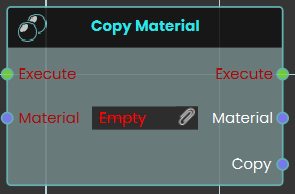
The Copy Material node duplicates an existing material and create a completely independent instance. Upon triggering the Execute input, the node takes the specified Material input and outputs a newly generated Copy of that material, which can then be freely modified without altering the original source.
 Copy Material Properties
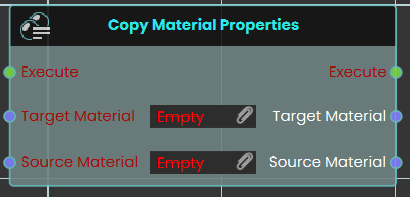
The Copy Material Properties node transfers visual attributes directly from one material to another without generating a new instance. When the Execute input is triggered, the node takes the characteristics of the Source Material input and applies them directly to the Target Material input, instantly overwriting the target's previous properties.
Example:
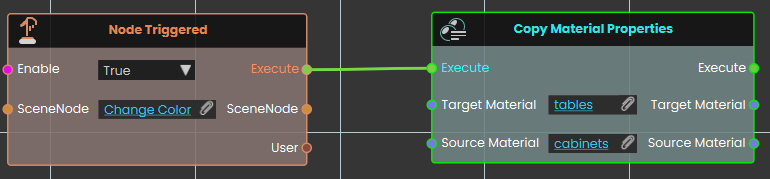
In this example, triggering the "Change Color" object prompts the system to execute the Copy Material Properties node. Once activated, the node takes all the visual attributes from the "cabinets" source material and immediately applies them to the "tables" target material, causing any 3D objects using the tables material to instantly match the appearance of the cabinets.