
Scene

 Load Scene

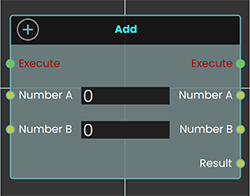 The Load Scene node is used to teleport between different scenes within your VR Experience. Enhancing the overall immersion and interactivity of the experience.
Example
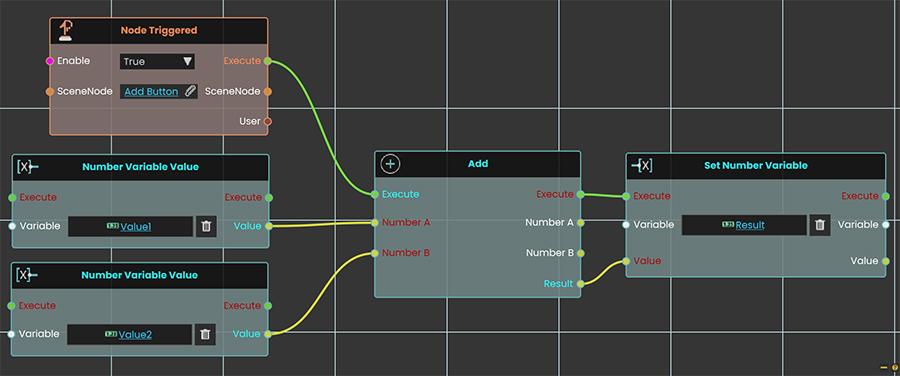
In this example, the Load Scene Node is used to transition the user from one scene to another. This node facilitates changing scenes, allowing for a dynamic experience as users navigate through different environments within the VR application.

 Home Scene
The Home Scene node enables users to return to the initial scene of the VR Experience. This node provides a straightforward way for users to reset the VR Experience to the starting point, ensuring a user-friendly navigation experience.
Example
In this example, the Home Scene Node is used to return the user to the main scene when the trigger event occurs. This allows you to teleport back to the primary environment, enhancing the user experience by providing a clear and intuitive way to return to the starting point.

 Import Scene
The Import Scene node is used to load an external scene into the current VR Experience. This allows users to dynamically bring in additional environments, objects, or elements as needed during runtime.
Example

In this example, the Import Scene node is used to load a car model into the scene when the "Import" object is triggered. The Node Triggered event detects user interaction and executes the Import Scene node, which then loads the specified car model from an external VR package file. This allows the car to appear dynamically within the VR environment.
Enterprise VR Packages
An Enterprise VR Package is a complete VR experience saved as a single .evrpackage file and made available at a web address. The node below lets a running VR session pull one of these packages in from its address while the experience is playing — so you can bring in extra content at the moment it's needed, instead of building everything into one scene up front.
Add Enterprise VR Package To Viewer
Loads an Enterprise VR Package from a web address and adds it to the VR experience that is currently running.
What it does
While your scene is playing in the VR Viewer, this node takes the web address you give it, fetches the Enterprise VR Package (an .evrpackage file) stored there, and adds that package's content to the session that's already running. It's the way to load extra VR content on demand — for example pulling in a particular training area, model, or environment only once the user has reached the right point — rather than loading everything at the start. The Success output tells you whether the package was added.
It waits for the package to finish loading
Fetching a package from a web address and loading it into the scene isn't instant — it takes a moment. This node handles that waiting for you. Its Execute output does not fire the moment the node runs; it fires only once the package has finished loading or the attempt has failed. So the nodes you wire after this one run when the package is ready, not the instant it's requested, and you don't need to add any delay of your own. Because Execute fires whether it worked or not, always check Success before assuming the package is there.
Inputs
.evrpackage file) to load.
Outputs
Example
https://enterprise.simlab-soft.com/packages/assembly-training.evrpackage
Success output
Yes
Tips
.evrpackage. The address must lead to an Enterprise VR Package and must be reachable from the device running the Viewer. If the address is wrong, the file isn't an Enterprise VR Package, or there's no connection, Success comes back No and nothing is added to the session.
No need to add a delay. The node already waits for loading to finish before its Execute output fires, so the nodes after it run at the right time on their own.