
SceneNode \ Transform \ Location

 Get Node Location

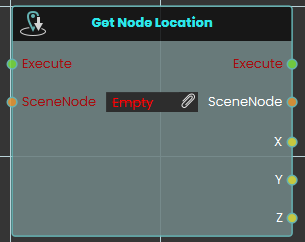
The Get Node Location response enables the user to obtain the X, Y, and Z coordinates of an object's location each time the event connected to it is triggered. Once the response is executed, the coordinates can be acquired through the X, Y, and Z ports.
Example
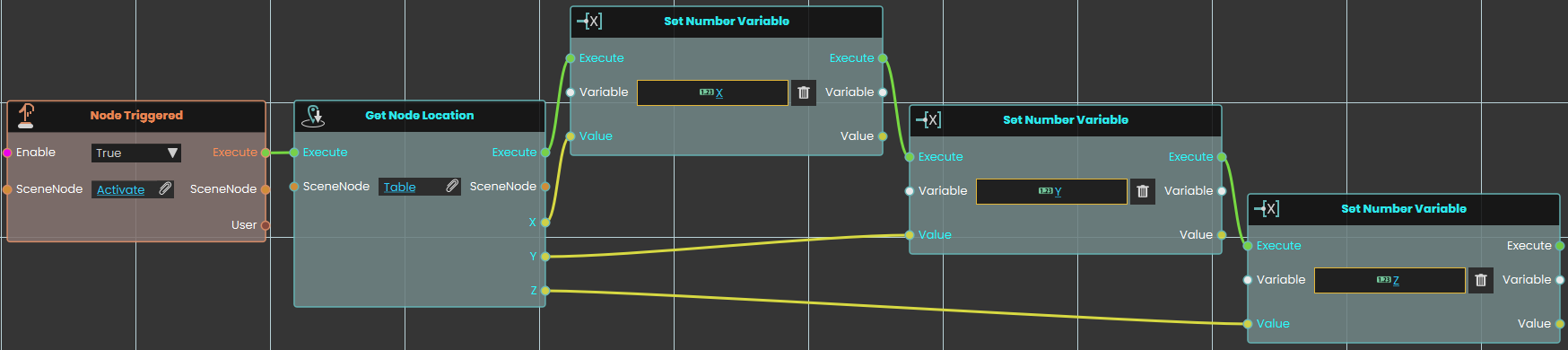
In this example, a Get Node Location response is used to obtain the X, Y, and Z coordinates of an object named Table once the user triggers the object named Activate. The coordinates are then stored in variables named X, Y, and Z, which can be connected to a variable writer to be displayed during the VR Experience.

 Set Node Location
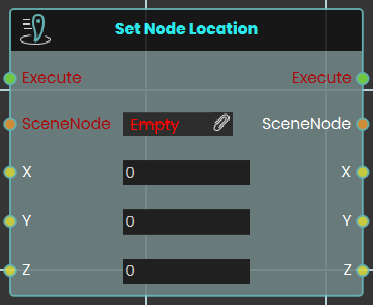
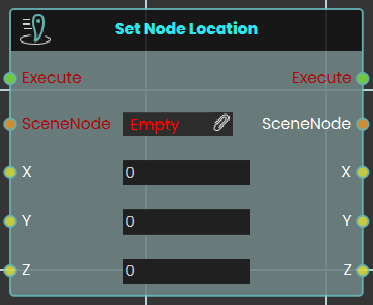
The Set Node Location response enables the user to set the location of an object to specific X, Y, and Z coordinates by either typing in the numerical values or by attaching a variable node to those ports. Once the response is executed, the object's new location is applied using the provided coordinates.
Example


In this example, a Set Node Location response is used to assign the X, Y, and Z coordinates stored in variables named X, Y, and Z to an object named Pot once the user triggers the object named Activate. The object's new location is set based on these coordinates, allowing the updated position to be reflected during the VR Experience.
Set Node Location (Animated)
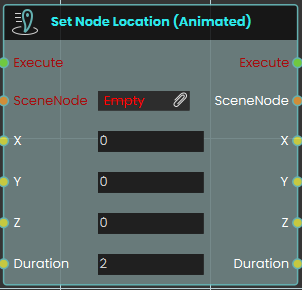
The Set Node Location (Animated) node enables the system to smoothly move a SceneNode to a specific global coordinate in the 3D space over a set period. this node creates a seamless tweening effect from the object's current position to its new target destination
This differs significantly from the standard Set Node Location node, which instantly snaps or teleports the object to the new coordinates without any transition. The animated variant is ideal for creating moving platforms, sliding doors, or moving vehicles.
Example
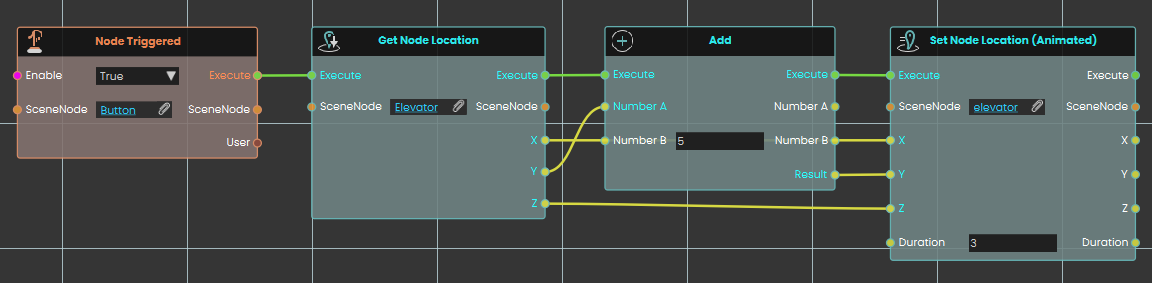
In this example, an interactive elevator mechanism is created.
Upon interacting with the button object, the Node Triggered event initiates the execution flow.
The Get Node Location node is used to retrieve the current X, Y, and Z global coordinates of the "Elevator" object.
To move the elevator up, the Y-axis coordinate is passed into an Add node, where 5 units are added to its current value. The X and Z coordinates remain unchanged.
Finally, the Set Node Location (Animated) node applies these new coordinates to the elevator object. The Duration parameter is set to 3, meaning it will take exactly 3 seconds for the elevator to smoothly transition (tween) to its new position 5 units higher.