
SceneNode \ Transform
 Get Node Transform
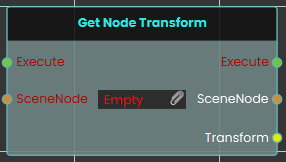
The Get Node Transform node retrieves the complete spatial data—including the exact location, rotation, and scale values—of a specific 3D object in the scene. When activated, the node takes the targeted SceneNode input, extracts its current transform matrix, and outputs this combined information through the Transform pin.
 Set Node Transform
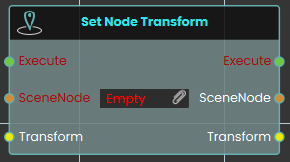
The Set Node Transform node instantly applies a complete set of spatial data—encompassing location, rotation, and scale—to a specific 3D object. Once activated, the node evaluates the targeted SceneNode and immediately updates its physical presence in the scene to perfectly match the data provided through the Transform input.
 Set Node Transform (Animated)
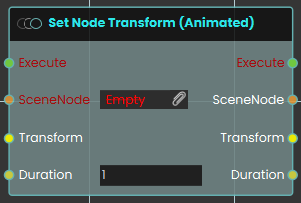
The Set Node Transform (Animated) node functions similarly to the standard set transform node, but it smoothly transitions the 3D object to the new location, rotation, and scale over a defined period. When activated, the node takes the targeted SceneNode and seamlessly tweens its spatial data to match the provided Transform input over the specific amount of time defined by the numerical Duration input (measured in seconds).
 Swap Nodes Transform
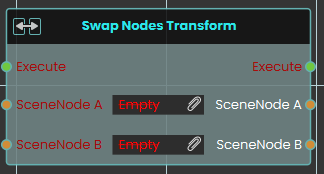
The Swap Nodes Transform node instantly exchanges the complete spatial data—including location, rotation, and scale—between two distinct 3D objects in the scene. When activated, the node evaluates the targeted objects provided in the SceneNode A and SceneNode B inputs and simultaneously swaps their placements, rotations, and proportions.
Transform Node to Node (Animated)
Smoothly moves one or more objects so they end up exactly where a second object is — same position, rotation, and size — over a set number of seconds.
What it does
This node takes a target object and reads its full placement in the scene — its position, its rotation, and its size. It then animates your chosen object(s) so that, over the time you set, they smoothly travel to that same placement and come to rest matching the target exactly.
The movement is measured in absolute scene coordinates, so your object lands at the target’s real position in the scene regardless of any groups either one belongs to. The target object itself is never changed — it stays put, and only the object(s) you pointed at the SceneNode input move. The non-animated version of this node snaps the object into place instantly; this version eases it there over the Duration you choose.
Inputs
2 for a gentle two-second glide, or set a smaller number to make it faster.
Outputs
Example
Drone object
ToNode input
The Landing Pad object
Duration input
3 (the drone glides onto the landing pad over three seconds)
SceneNode output
The Drone, now resting in the landing pad’s place — ready to chain into the next node
Tips
0 for an instant jump, or use the non-animated version of this node if you never want the smooth motion.