
SceneNode \ Management
 Enable Walk-Through
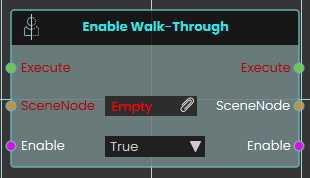
The Enable Walk-Through node explicitly controls the physical collision properties of a targeted 3D object within the VR Viewer. When activated, the node uses the boolean Enable input to determine the collision state of the specified SceneNode—allowing users to seamlessly pass directly through the object without physical obstruction if set to True.
 Find Node By Name

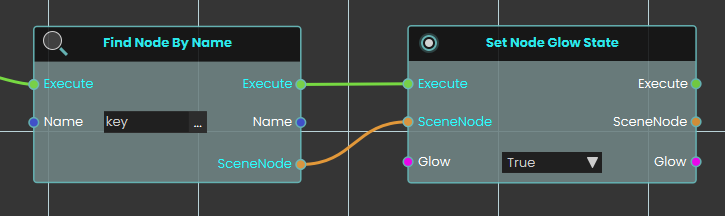
The Find Node By Name node searches the VR environment and dynamically locate a specific 3D object based on its assigned text identifier. When activated, the node takes the exact string provided in the Name input, searches the scene to find the corresponding object, and outputs that specific SceneNode reference.
 Make Node Copy
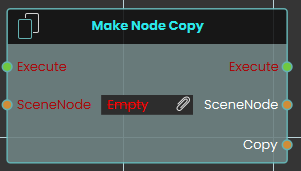
The Make Node Copy node duplicates a specific 3D object along with an independent copy of its material. Once activated, the node takes the targeted SceneNode input and generates a completely separate Copy, ensuring that any subsequent material or texture changes applied to this new object do not affect the original source.
 Make Node Instance
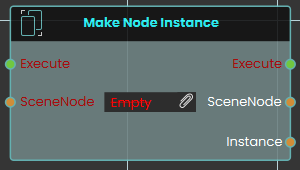
The Make Node Instance node generates a direct clone of a specific 3D object in the scene. When activated, the node takes the targeted SceneNode input and creates a new Instance that shares the exact same material properties as the original.
Example:
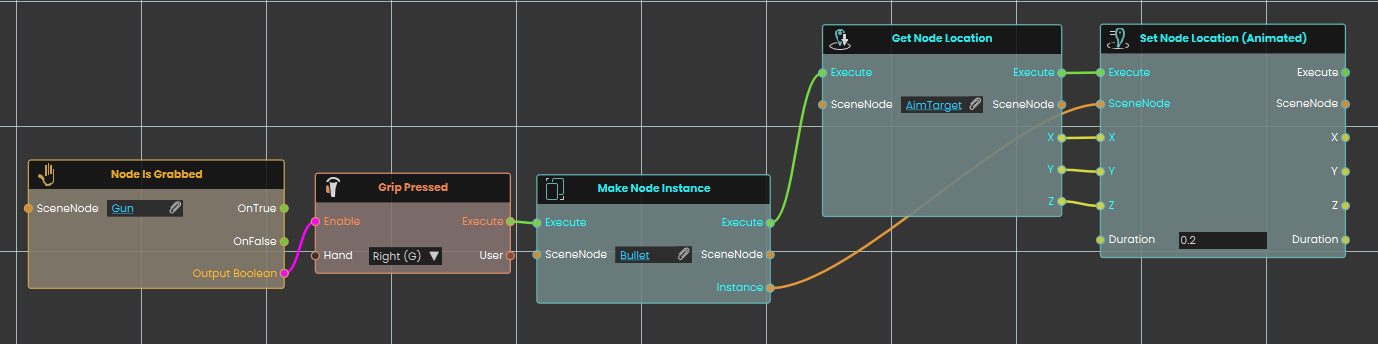
In this example, we create a simple shooting mechanic where firing a gun generates and shoots a bullet toward a target:
-
A Node Is Grabbed node continuously checks if the user is holding the "Gun" object, enabling the next node if the condition is met.
-
A Grip Pressed event node listens for the user to press the right hand's grip button, acting as the trigger to fire the weapon.
-
Once the grip is pressed, the Make Node Instance node activates, immediately generating a new instance of the "Bullet" object in the scene.
-
A Get Node Location node is then used to retrieve the exact X, Y, and Z coordinates of a specific "AimTarget" object.
-
Finally, a Set Node Location (Animated) node takes the newly generated bullet instance and smoothly moves it to the AimTarget's coordinates over a quick duration of 0.2 seconds, simulating a flying projectile.