
Co-Simulation
SimLab Composer introduces co-simulation, allowing mechanical engineering simulations to be combined with virtual reality (VR). This integration provides engineers with the ability to visualize and interact with simulations in real time, enhancing both understanding and collaboration.
The feature uses WebSocket technology to connect simulations running on a computer with a VR headset such as Meta Quest. This means that while a mechanical simulation is being executed, the live results can be viewed directly in VR, creating a more immersive and interactive experience.
Another advantage of this setup is its cloud-friendly design. Even if the VR environment is hosted in the cloud, the connection remains seamless.
The co-simulation link also allows the VR experience to influence the simulation itself. Inputs and changes made in VR can be used as variables within the mechanical simulation. For example, a user can increase a motor’s speed or disconnect a body within the simulation, and those changes will be reflected immediately.
A tutorial is available to guide users through the process of blending VR and mechanical simulations in SimLab Composer. This step-by-step walkthrough ensures that engineers can quickly adopt the feature and take full advantage of its capabilities.
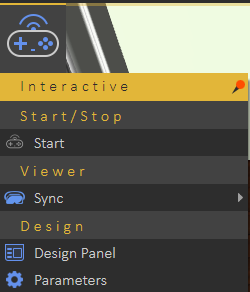
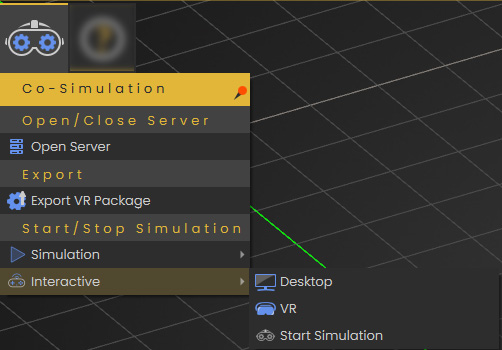
The Co-Simulation menu provides users with various options to facilitate simulation tasks. Below are the options available in this menu:
-
Open/Close Server
-
Use this option to open or close the local WebSocket server dedicated to passive and interactive real-time simulation. WebSockets enable two-way interactive communication sessions between a client application (SimLab VR Viewer or a web client) and a local host (SimLab Composer).
-
-
Export VR Package
-
This option allows you to export the current simulation as a simulation-compatible VR Package.
-
-
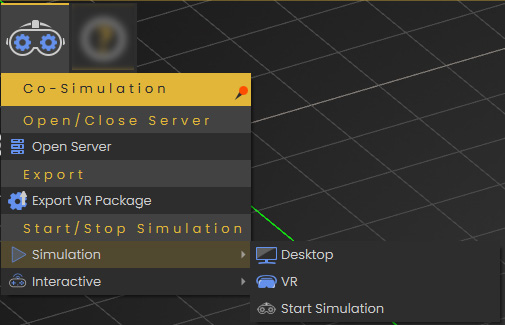
Simulation Sub-Menu
-
Desktop
-
Simulate in SimLab VR Viewer using desktop mode.
-
-
VR
-
Simulate in SimLab VR Viewer using virtual reality mode (VR headset).
-
-
Start Simulation
-
Initiate the simulation process using the local WebSocket server.
-
-
-
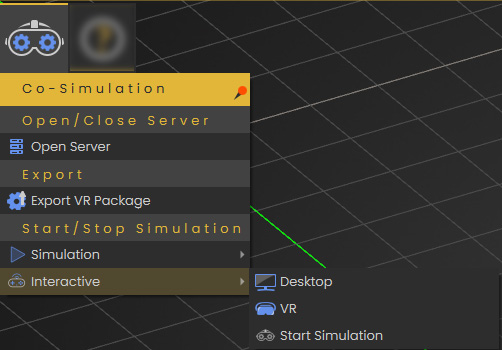
Interactive Sub-Menu
-
Desktop
-
Interact with the simulation in SimLab VR Viewer using desktop mode.
-
-
VR
-
Interact with the simulation in SimLab VR Viewer using virtual reality mode (VR headset).
-
-
Start Simulation
-
Start interactive simulation using the local WebSocket server.
-
-