
Animation
SimLab VR Studio is able to Import Rigid and flexible (Joints-based rigged) bodies animations as well as create animation for objects in the animation timeline through several tools.
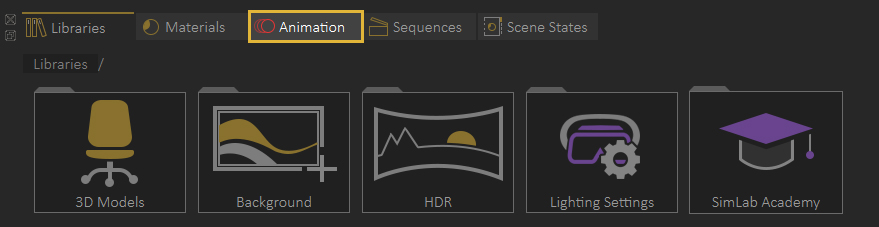
To access the Animation timline, open the Animation Tab in the library panel at the bottom of SimLab VR Studio.
Animation Timeline User Interface


1. Animation Keyframes Creation tools
|
|
Auto Key | When toggled, any change in transformation for objects is recorded as a keyfram automatically when the current key frame is other than 0. |
 |
Capture object |
Captures a keyframe |
 |
Capture camera |
Captures a keyframe for the active camera's transformation and view. |
 |
Show Object | Toggles on the visibility of |
 |
Hide Object | Toggles off the visibility of |
 |
Director Record | Captures the camera's live movement in the scene as a sequence of keyframes along the animation range. |

 Go to previous keyframe
Moves the current time slider to the previous keyframe.
Go to previous keyframe
Moves the current time slider to the previous keyframe.
 Go to next keyframe
Moves the current time slider to the next keyframe.
Go to next keyframe
Moves the current time slider to the next keyframe.
 Select all keyframes
Selects all keyframes and generated animations in the timeline.
Select all keyframes
Selects all keyframes and generated animations in the timeline.
 Group keyframes
Group selected keyframes into a single group element.
Group keyframes
Group selected keyframes into a single group element.
 Break Group
Breaks a group into keyframes.
Break Group
Breaks a group into keyframes.
 Move keyframe
Moves the selected keyframes to a specific frame.
Move keyframe
Moves the selected keyframes to a specific frame.
 Copy keyframe
Copies and moves the selected keyframe to a specific frame.
Copy keyframe
Copies and moves the selected keyframe to a specific frame.
 Delete selected keyframe
Deletes the selected keyframes from the timeline.
Delete selected keyframe
Deletes the selected keyframes from the timeline.
 Delete all
Deletes all keyframes from the timeline.
Delete all
Deletes all keyframes from the timeline.
 Create Animation Sequence
Converts the selected keyframes in the timeline to an Animation Sequence.
Create Animation Sequence
Converts the selected keyframes in the timeline to an Animation Sequence.
 Show Animation Sequences list
Displays a list of all Animation Sequences where you can edit, modify their group or delete them.
Show Animation Sequences list
Displays a list of all Animation Sequences where you can edit, modify their group or delete them.
 Round Table
Creates an animation where an Object revolves up to 360 degrees around its center.
Round Table
Creates an animation where an Object revolves up to 360 degrees around its center.
 Follow Path
Animates an object a long a path.
Follow Path
Animates an object a long a path.
 Wheel Animation
Creates a wheel animation of an object around a center point while determining the number of revolutions.
Wheel Animation
Creates a wheel animation of an object around a center point while determining the number of revolutions.
 Round Table
Creates an animation where an Camera revolves up to 360 degrees around it's center point of view.
Round Table
Creates an animation where an Camera revolves up to 360 degrees around it's center point of view.
 Helical
Creates an animation where an Camera revolves up to 360 degrees around it's center point of view while decending downwards.
5. Capture Video
Helical
Creates an animation where an Camera revolves up to 360 degrees around it's center point of view while decending downwards.
5. Capture Video
 Render View in VR
Renders an animated camera as a sequence of images using the SimLab VR Viewer.
Render View in VR
Renders an animated camera as a sequence of images using the SimLab VR Viewer.
 Open Movie Maker
Opens the Movie Maker, where you can compile a sequences of images into a single video file.
6. Navigation Control
Open Movie Maker
Opens the Movie Maker, where you can compile a sequences of images into a single video file.
6. Navigation Control
 Go to first frame
Moves the current time slider to the first frame in the animation range.
Go to first frame
Moves the current time slider to the first frame in the animation range.
 Backward Play
Plays the animation in the timeline in reverse.
Backward Play
Plays the animation in the timeline in reverse.
 Play
Plays the animation in the timeline.
Play
Plays the animation in the timeline.
 Go to last frame
Moves the current time slider to the last frame in the animation range.
Go to last frame
Moves the current time slider to the last frame in the animation range.
 Scale timeline
Scales up and translates all they keyframes in the timeline.
Scale timeline
Scales up and translates all they keyframes in the timeline.