SimLab CAD Viewer is a mobile application that allows you to view and navigate, on the go, computer-aided 3D designs and architectural models on iOS and Android devices.
SimLab CAD Viewer reads the SimLab Archive File (*.ZIM) exported either from SimLab Composer or the Android/iPad Exporter plug-in which is available for SketchUp, Rhino, SolidWorks, Inventor, 3ds Max, Maya, and Modo. The SimLab Archive Files (*.ZIM) include all the necessary data needed for displaying models on smartphones and tablets. The data include geometries, colors, materials, textures, cameras, scene states, and animations.
SimLab CAD Viewer is currently available for free and can be downloaded from the App Store (iOS) and Google play (Android).



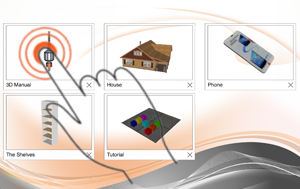
Upon launching SimLab CAD Viewer, list of pre-installed sample models appears to the user allowing him/her to start quickly in demonstrating the capabilities and the features that SimLab CAD View offers.
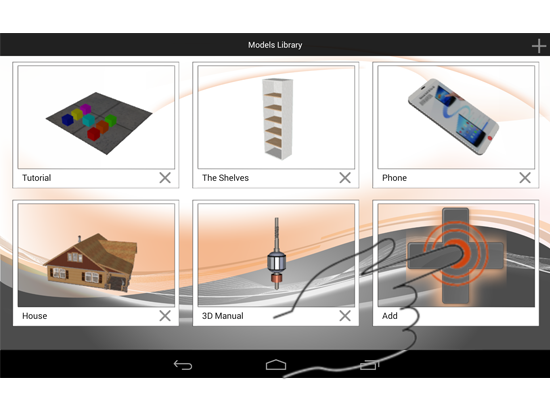
The library lists thumbnail images as links to the available models stored in device. The user can tap any of them to begin using our great app.
While navigating a model, the user uses his/her fingers to control the view and interact with the different element within the scene. The user can:

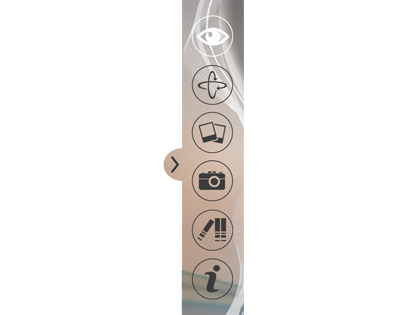
The slider of SimLab CAD Viewer is only available while model navigation is on. It presents the following options:
SimLab Archive Files (*.ZIM) are exported from SimLab Composer, or any of SimLab iPad/Android exporter plug-ins. This can be done by:
The Generated (*.ZIM) files can be transferred to SimLab CAD Viewer in different ways.
After uploading a ZIM file on Google Drive and launching its app, login using a Google account.
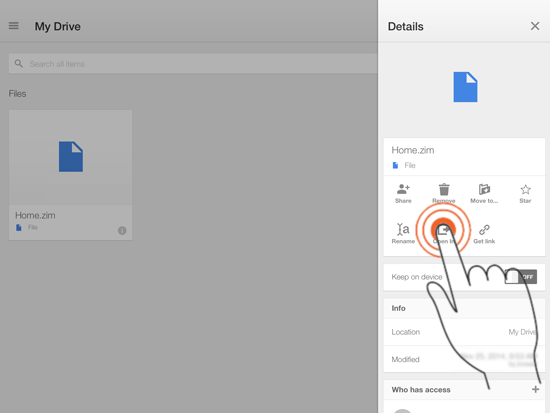
The user's directories will appear, and tapping a directory will show its contents.
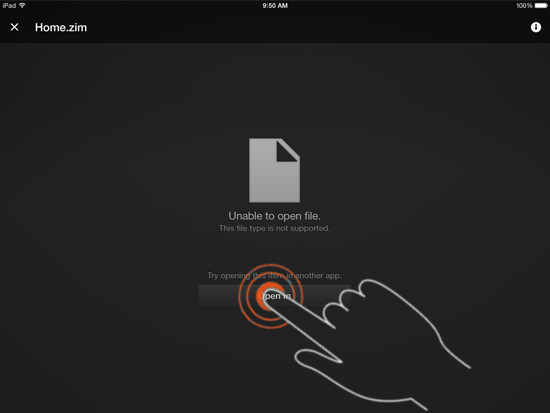
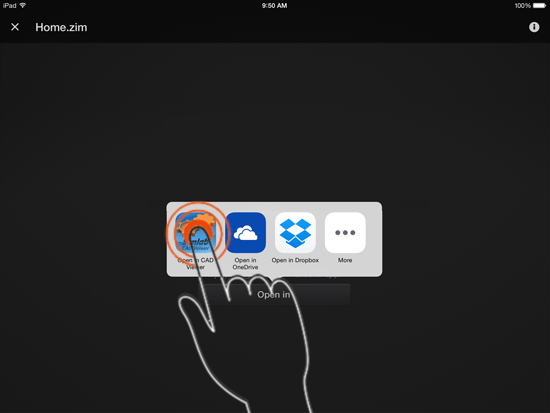
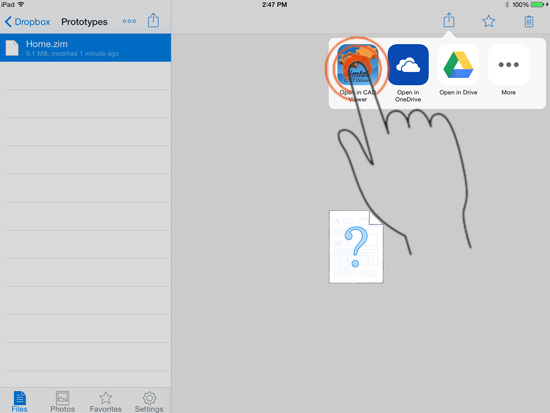
Tap the ZIM file in order to reveal its details menu > Tap the "Open In" option > Then tap the "Open in SimLab CAD Viewer" icon.
After uploading a ZIM file on dropbox and launching its app, login using a dropbox account.
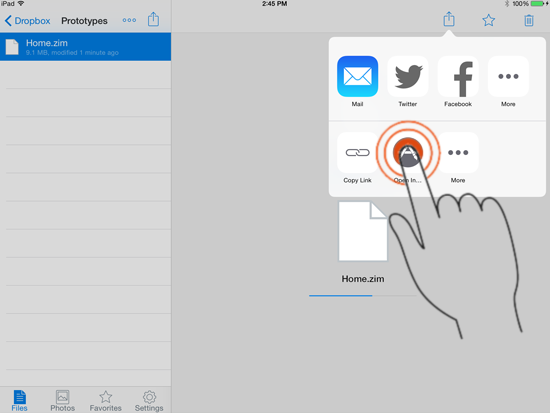
The user's directories will appear, and tapping a directory will show its contents.
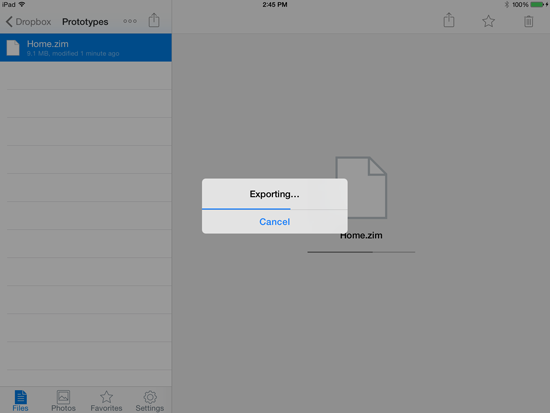
Tap the ZIM file in order to reveal its details menu > Tap the "Open In" option > Then tap the "Open in SimLab CAD Viewer" icon.
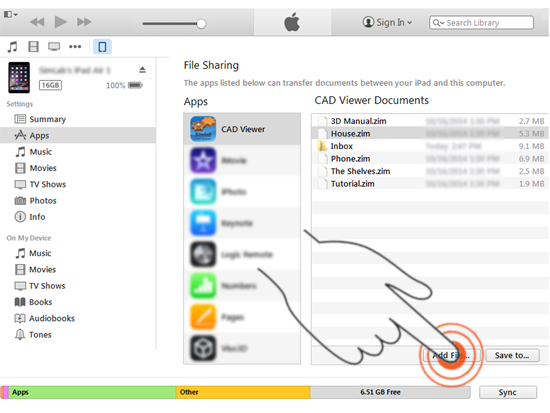
For iOS devices: Using Apple iTunes, the user can transfer ZIM files from his/her PC or Mac to iPhone or iPad via a USB cable. Open iTunes and go to Apps, then drop the Zim file(s) you want on CAD Viewer documents.
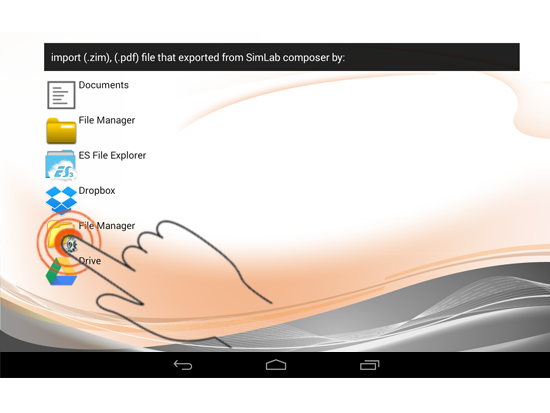
For Android devices: On the Models Library, tap the Plus icon (available only in the Android version) then use the File Manager utility of the user's smartphone or tablet. The user can start to transfer ZIM files from his/her PC or Mac to the mobile device after connecting a USB cable.
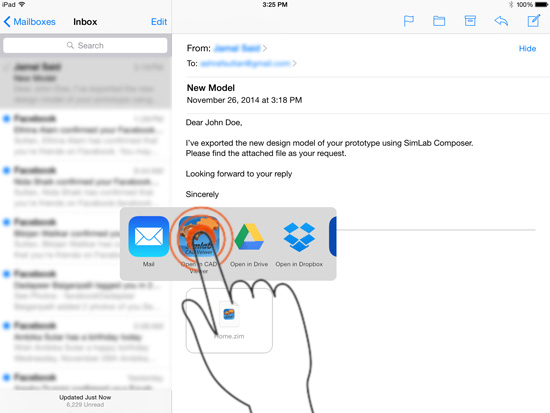
After sending a ZIM file to an e-mail box, the user can open that e-mail and tap on the attached ZIM file. If SimLab CAD Viewer is installed on the tablet, the ZIM file will be launched.
The user can also find ZIM files uploaded on certain websites and servers. The only thing that the user should do is to tap a file in order to open it after the download process.
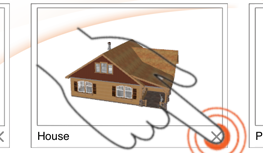
The user is able to remove unwanted models from the list of the library; simply by tapping the (X) mark which appears next to each model thumbnail.